New Windows videos: Watch all four Getting Started guides for PC, with narration, captions and full transcripts.
Add a song: quick entry or Full setup
Choose Songs → Add Song. The small dialog asks for Title and Artist. Add Song checks for an existing song and tries to find matching song material online. A confident available match supplies song material for review; otherwise choose a matching version or Use my own lyrics. If lookup is unavailable, the song can still be saved so you can type or paste your words. Internet lookup is optional, and downloaded words must be checked against your arrangement.
If the song already exists, Open preserves that song; Change details corrects the search; Add separate song deliberately creates another arrangement. Nothing is silently overwritten. For backing tracks, files, written charts or detailed preparation, choose Full setup before adding. Your title and artist carry into Song Info. An existing song's Edit also opens the full preparation workflow.
Quick Add does not establish that suggested words or chords are accurate, that recorded timing is reviewed, or that the song is Performance Ready. To add bracket chords, edit the lyrics deliberately and put each chord immediately before its changing word or syllable.
Finish, blockers and recovery
Finish can show One more thing before saving. The draft is kept. Follow Review section or the offered action to the exact conflict in the lanes, correct placement and replay. Do not rename or reorder reviewed sections to hide a timing conflict. Set music start, Details and options and Recovery history are offered where relevant. Restoring a revision is an explicit recovery choice.
Review flagged lyrics by listening
In Review, expand Review flagged lyrics. It shows the line, its issue, and Previous issue / Next issue. For a line with timing, Play passage auditions it and Select line in lanes reveals it for editing. Keep current timing is available only when that line has valid placement eligible for that choice; it is not a way to approve a missing, overlapping, out-of-order or out-of-recording line.
For a missing line, choose Listen near this line, listen near the surrounding words, and pause at its first word. Listening does not change timing. Choose Set line start here only after locating the entrance; check the ending and word positions in the lane and replay. Without a recording use Add recording; a device without supported playback cannot perform the listening step. Next issue navigates rather than silently approving the item.
Guided review → Previous check / Next check moves between the relevant checks. Review details → Review selects an issue in the lanes and keeps timing unchanged. No reported conflict is not proof that the song is performance-ready. Listen through repeated phrases, missing entrances, overlaps and the ending.
Open Show controls on the relevant lane: Audio reference / Beat grid for playback range, numbering and rebuilding; Chords for key, shifts and score alignment; Lyrics for vocal timing; Sections for headings and boundaries. If this is your situation… explains decisions. Use for next rebuild chooses a future analysis downbeat; Make a measure M1 renumbers the existing chart without moving audio or events. These are different operations.
Your reviewed words, section names, occurrence order and chord-to-word placement remain authoritative. MusicXML, MIDI, transcription and recording analysis support timing and alignment. They must not silently substitute another version or rearrange the reviewed sections. A recovered or supported entrance still needs listening; retain the saved version until you explicitly accept a proposed replacement. Reopening a workspace is not permission to rerun or overwrite reviewed preparation.
Documentation updated November 6, 2026. Download the complete user guide · Download the four Getting Started guides · Beta test checklist.
Getting started
Cuevera doesn't require an account or an internet connection — everything lives in a local library on your device. The fastest way to get going is to import songs you already have (OnSong files, ChordPro files, or stem ZIPs), or add a song from scratch on the Songs page and write its lyrics and chords yourself.
The app is organized around a left sidebar (desktop) or bottom tab bar (phone/tablet): Songs, Sets, Instruments, Requests, Band Connect, and More, which contains Display, MIDI, Pedal, Tracks, Reference Music Service, Import, License, Theme, and Help. Backup & Sync is available where the platform supports it.
Song library
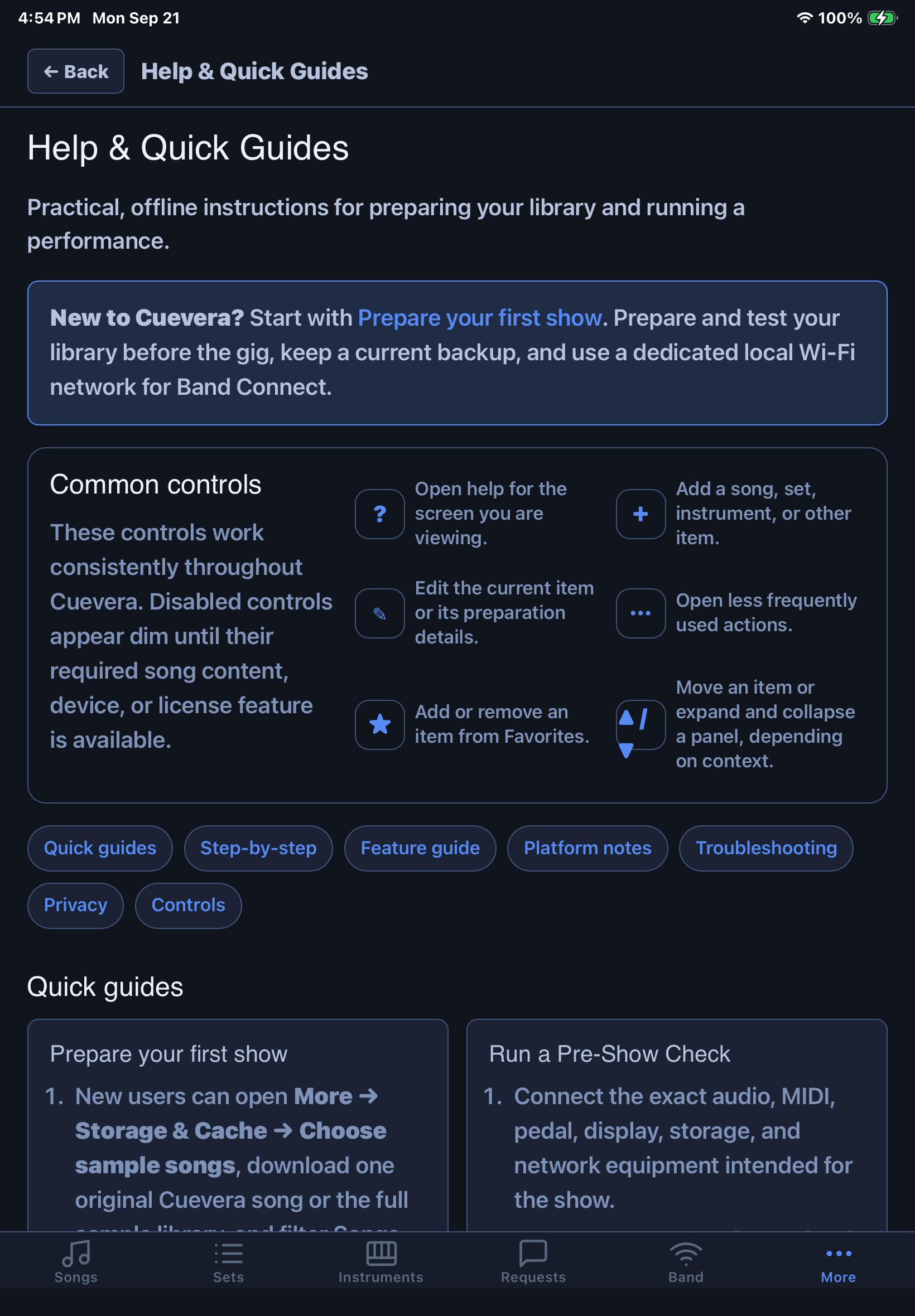
The Songs page is a full-width library browser with search, grouping, favorites, readiness indicators, set actions, and delete controls. Select a row to open Song View, where its title, artist, key, time signature, BPM, genre, status, lyrics, charts, sections, audio, and MIDI can be reviewed or edited.
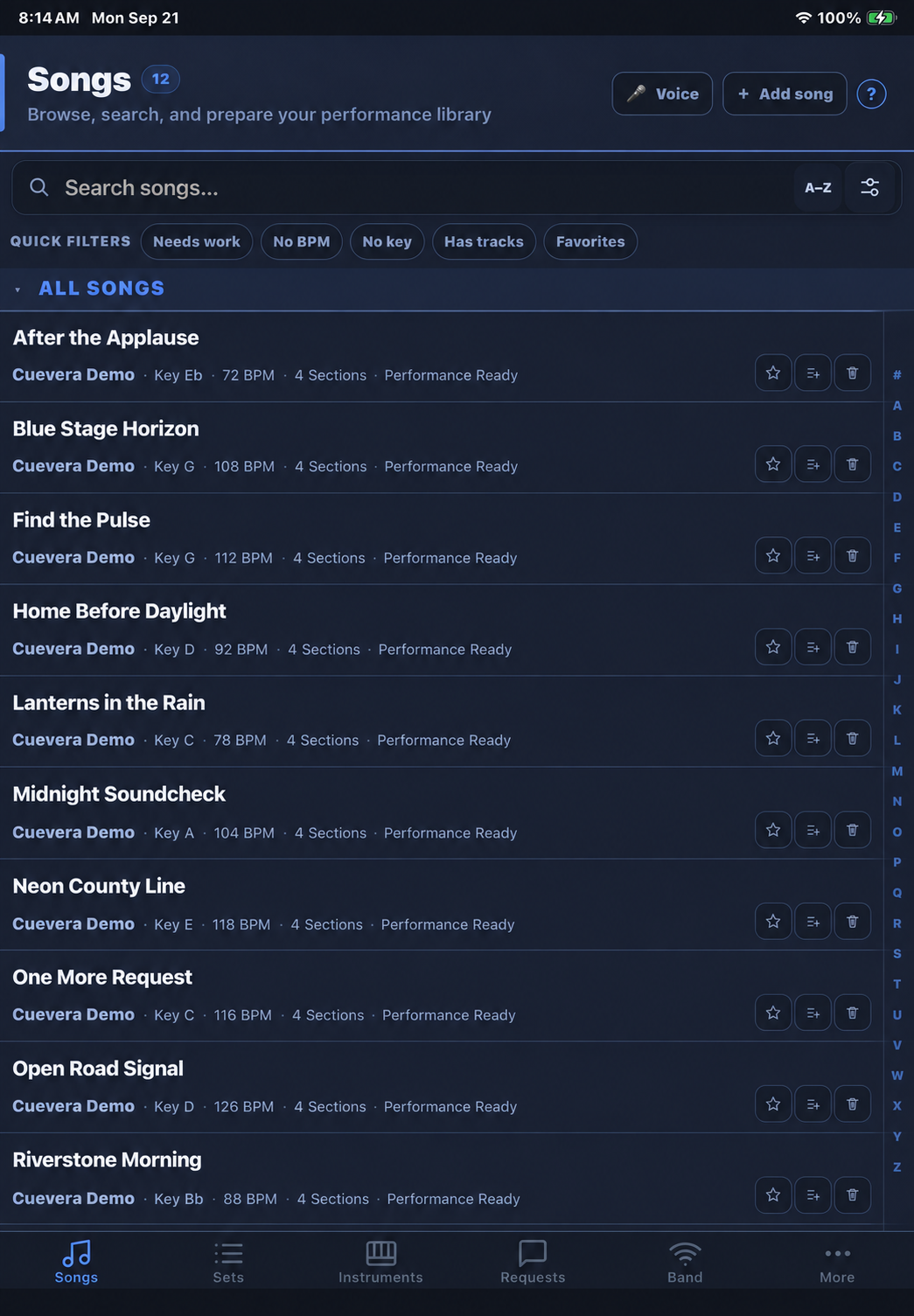
- Title, Artist, Genre — Genre has an Auto button that looks the song up online to fill it in.
- Key — has an Auto button that detects the key directly from the song's backing track.
- BPM and performance notes.
- Sections — Intro, Verse, Chorus, Bridge, and so on, each with its own color tag (Harmony / Solo / Bridge / Tag) used to highlight it in the performance view.
- Song Start MIDI — a Program Change / Control Change command that fires automatically the moment you open the song, tied to a saved patch from your Instruments library or a manual device/channel/program number.
Use the search field to find a title or artist. Song editing occurs in Song View rather than in a separate right-side detail pane.
On touch devices, swipe a song row to reveal Delete. Deletion requires confirmation so an accidental swipe cannot immediately remove a song.
Editing lyrics & chords
The lyrics editor uses the same header and layout as the performance view itself, so what you're editing looks like what you'll see live. It uses simple inline chord notation:
- A line ending with a colon is treated as a section header (e.g.
Chorus:). - Chords go directly before the syllable they belong to:
[G]Amazing [D]grace. - Chord-only lines (intros, turnarounds) are written as bracketed chords with no lyric text:
[F][C] [F][Am].
You can load and play the song's backing track from the editor while you work, so you can check chord placement against Reference audio or assigned performance Tracks.
Prepare Song
Current preparation — November 6
Start in Song Info with title and artist. Expand Add files (optional) only when you need lyric/chord import or lookup, PDFs, audio, MIDI, or MusicXML. The visible rail is Song Info → Lyrics & Chords → Review → Finish. A simple lyrics song can still use Save Song directly.
Supplied words, line breaks, sections and chords are kept automatically. With audio, Save & Continue to Review loads usable timing or aligns the working words to the recording. The older Analyze Song screen and reference-source switches are not routine steps in the current flow. Listen through the Review lanes before approving an estimated position.
Make this measure M1… selects the first full measure while earlier measures remain as the intro. Audio, lyrics, chords, cues and reviewed timing stay at their current seconds. This relabeling is different from trimming playback or moving all chords. The Audio reference / Beat grid lane holds playback range and song-start tools; the Chords lane holds intentional musical corrections. Lane-specific Show controls and situation help contain alignment retries and advanced build/rebuild controls.
Format Song previews changes before Apply to Draft. Edit Chords adds, changes, moves or removes bracket symbols. Put chords at their word or syllable changes. Recommended means a repertoire suggestion requiring review, not Performance Ready.
Correct timing while listening
In an editable timeline lane, select a section or lyric block before using keyboard shortcuts. Left/Right moves it one beat; Shift+Left/Right nudges a lyric line by 0.05 seconds or resizes a section edge by one beat; Ctrl+Left/Right resizes the right edge by one measure. Use the line’s right-edge handle to distribute its words across a manually reviewed range, and replay after editing.
In Review’s Lyrics tools, Place lyrics live can mark line entrances during playback. Rewind to correct the last placed entrance, then stop placement and replay. Estimated word positions and manually spread words still require listening and review.
Follow the four Getting Started guides for the appropriate workflow.
Performance view
Song View’s source menu separates Tracks, Section-led, no backing, and Live BPM — no backing audio. Live BPM runs a silent performance clock with Start/Pause, Tap, tempo controls, and section jumps. On devices exposing supported microphone input, Follow Me can listen locally to rhythm; amber means listening and green means following. Tap and manual tempo controls remain available. Microphone tempo following is unavailable on Android in the current implementation.
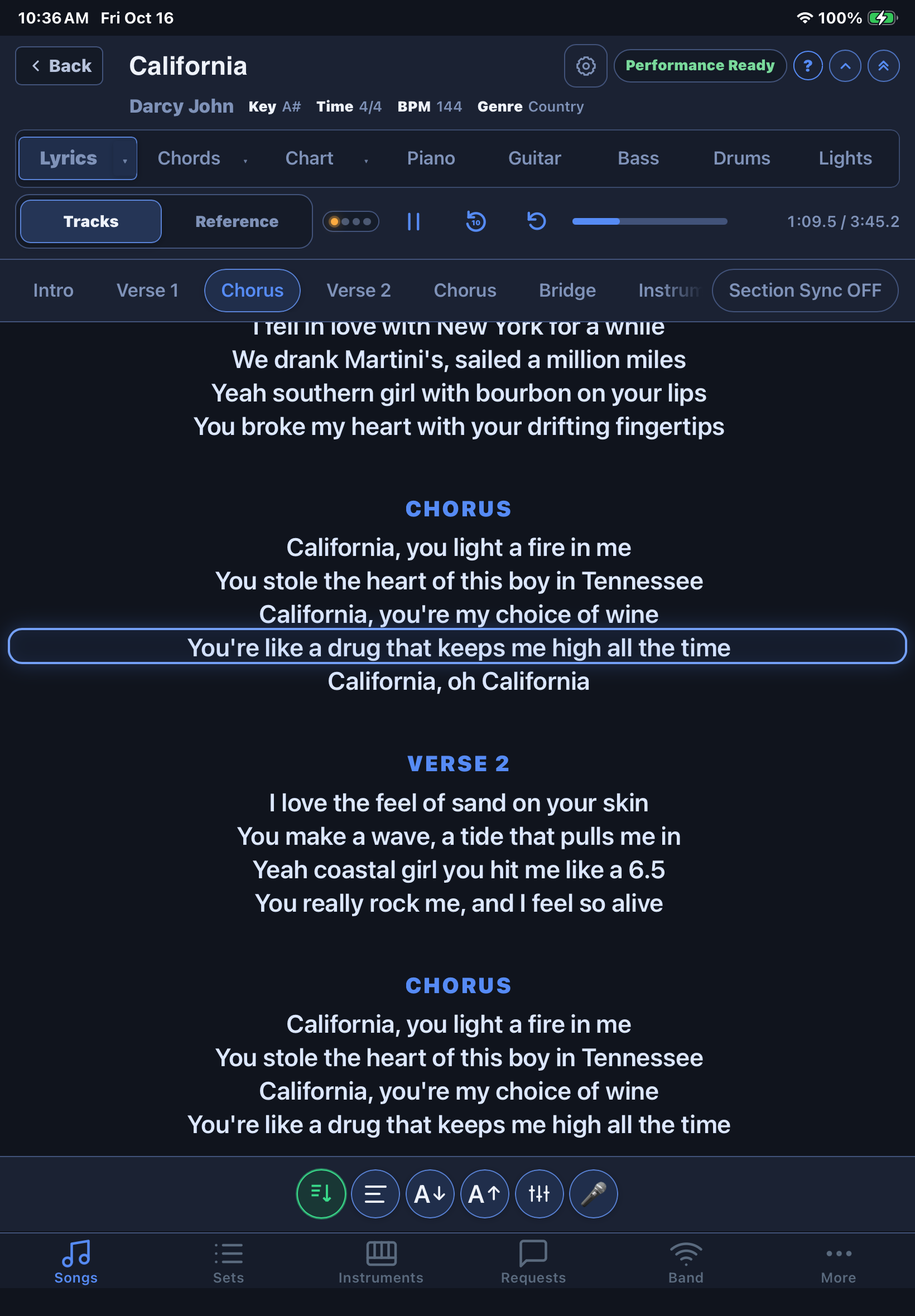
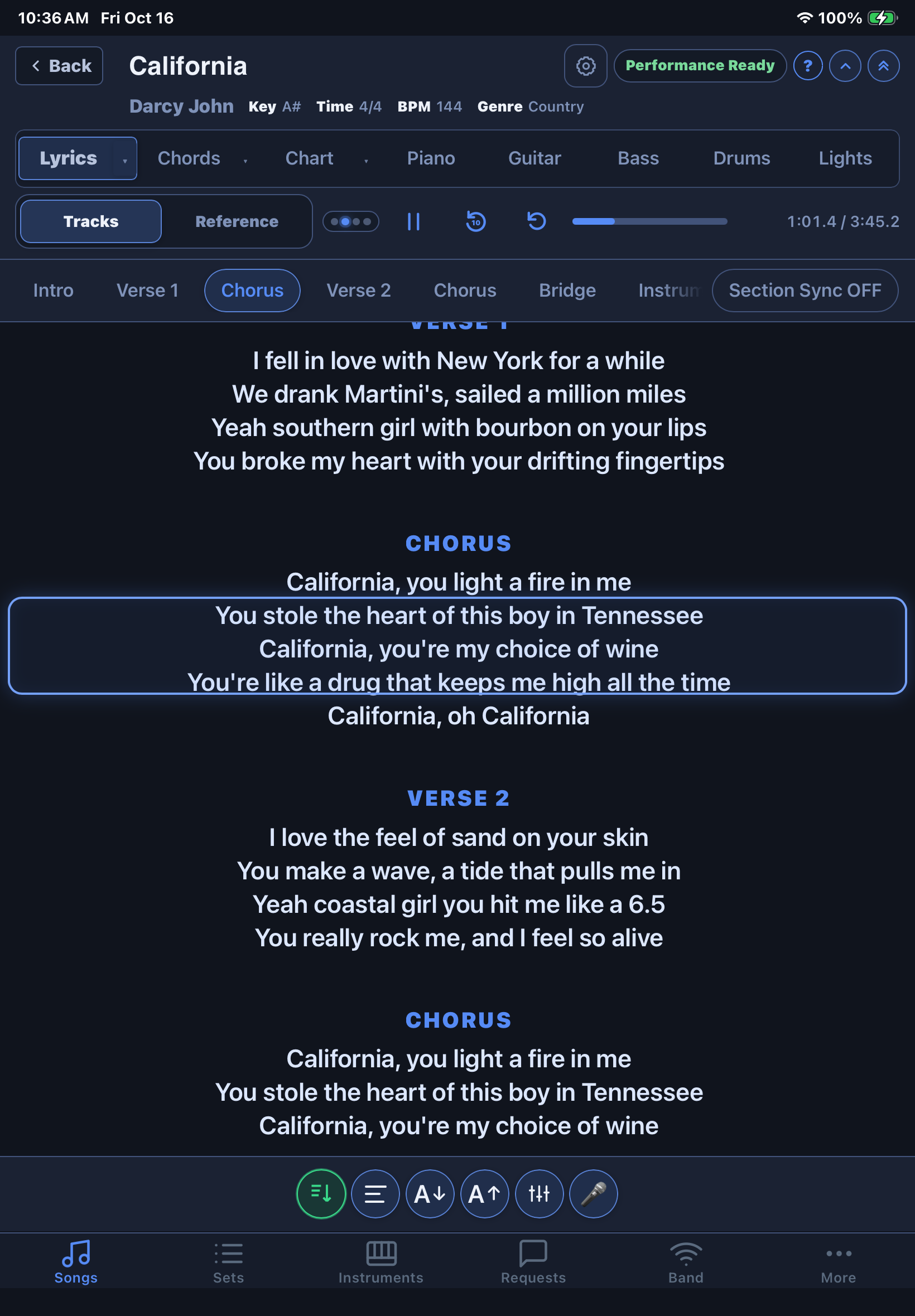
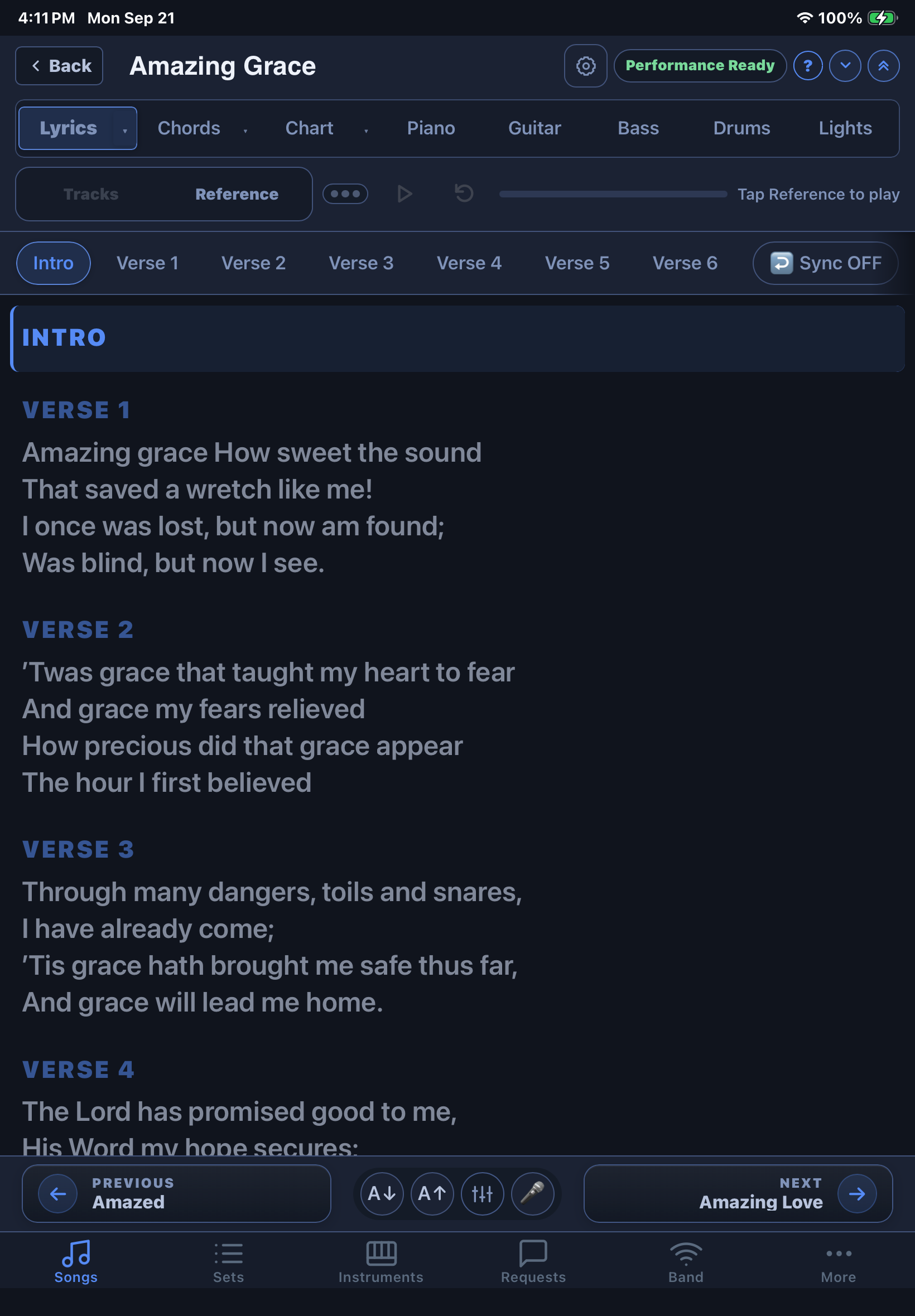
The performance view brings lyrics, chords, section navigation, and playback controls together. The Lyrics view can highlight a single line or a larger group of lines during playback, as shown below.
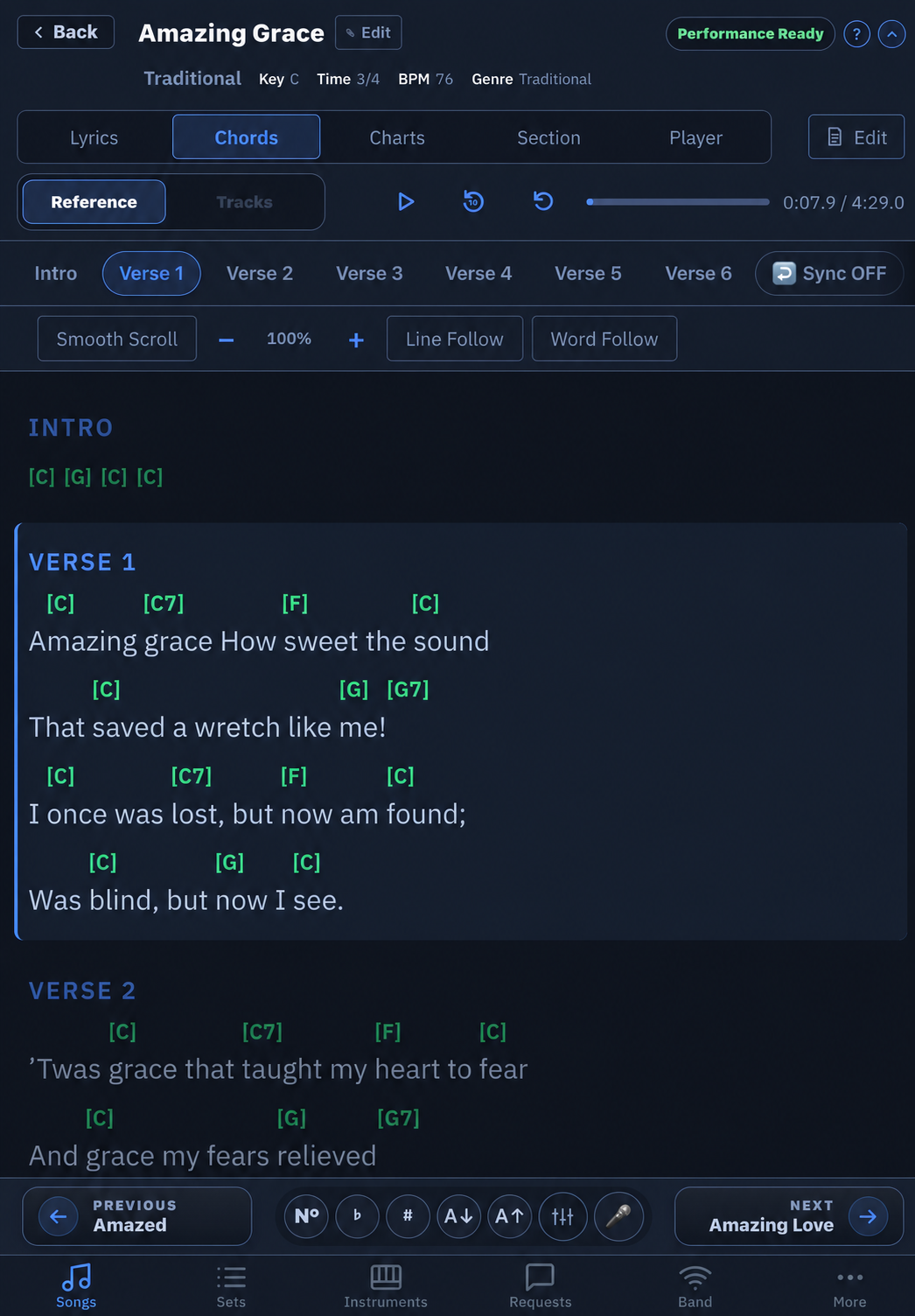
- Nashville Style — shows a measure-only roadmap in four-measure phrases while keeping the active phrase and section heading visible during playback.
- Section bar — tap any section to jump straight to it. Sync mode queues the tap instead, so it takes effect cleanly at the end of the current section rather than cutting it off.
- Transpose — in chord-name mode, flat/sharp changes the saved chart and song key. It does not transpose backing audio or MIDI. Change audio separately with Track Mix → Pitch. Capo changes device-local chord shapes without changing the concert key.
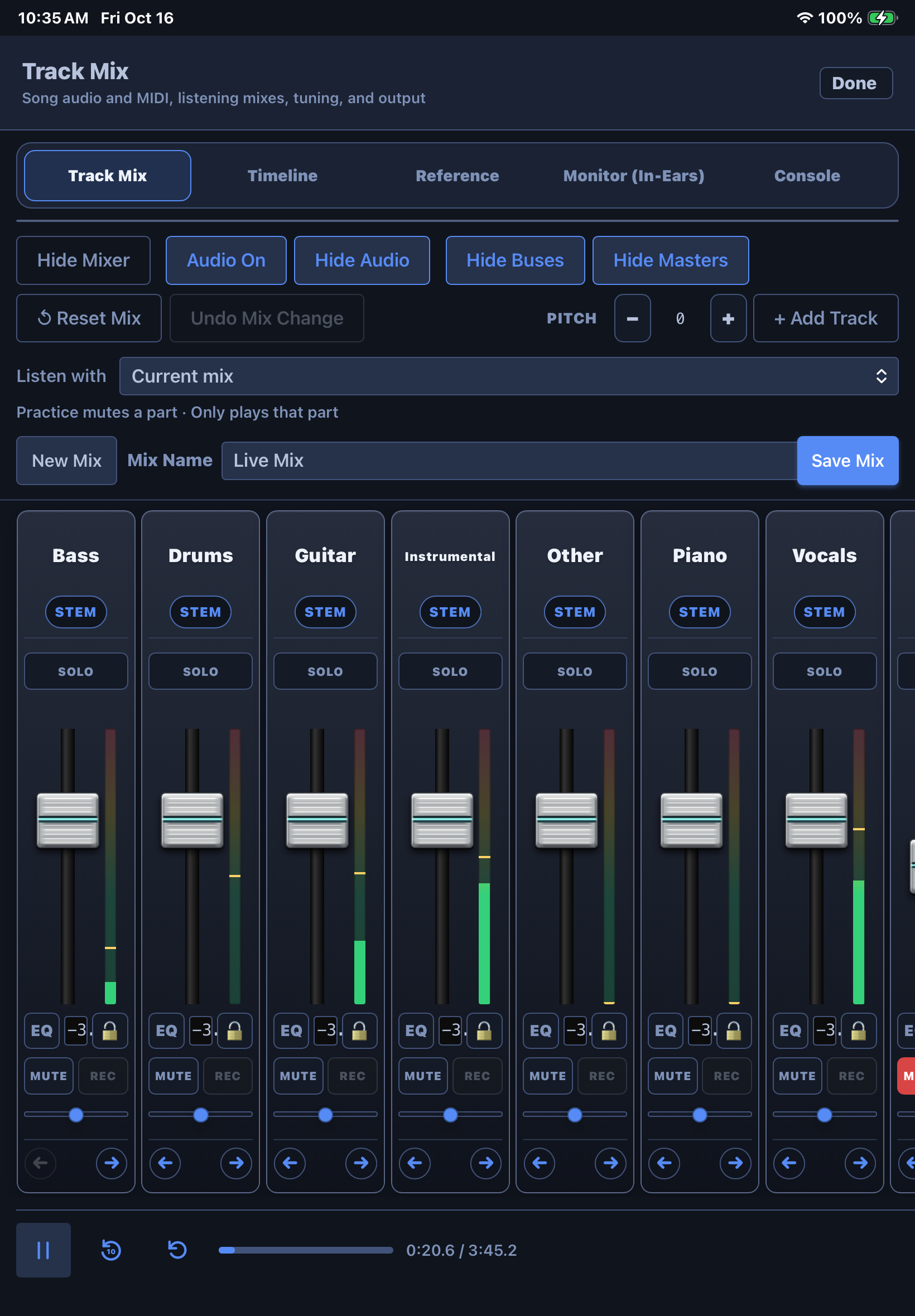
- Track mixer — mute, solo, level, and route individual Tracks such as click, vocals, or guitar.
- Instrument views — use independent Guitar, Bass, Piano, and Drums views when enabled in Display Settings.
- Continuous playback — changing song views does not surrender the master song clock or restart the Track.
- Auto-scroll — the current line is highlighted as the track plays, and the view follows along automatically.
- Tap zones on the far left/right edges jump to the previous/next song in the current set.
- ⧉ Lyrics Display opens a second, lyrics-only window — handy for a stage monitor or a second screen the rest of the band can see.
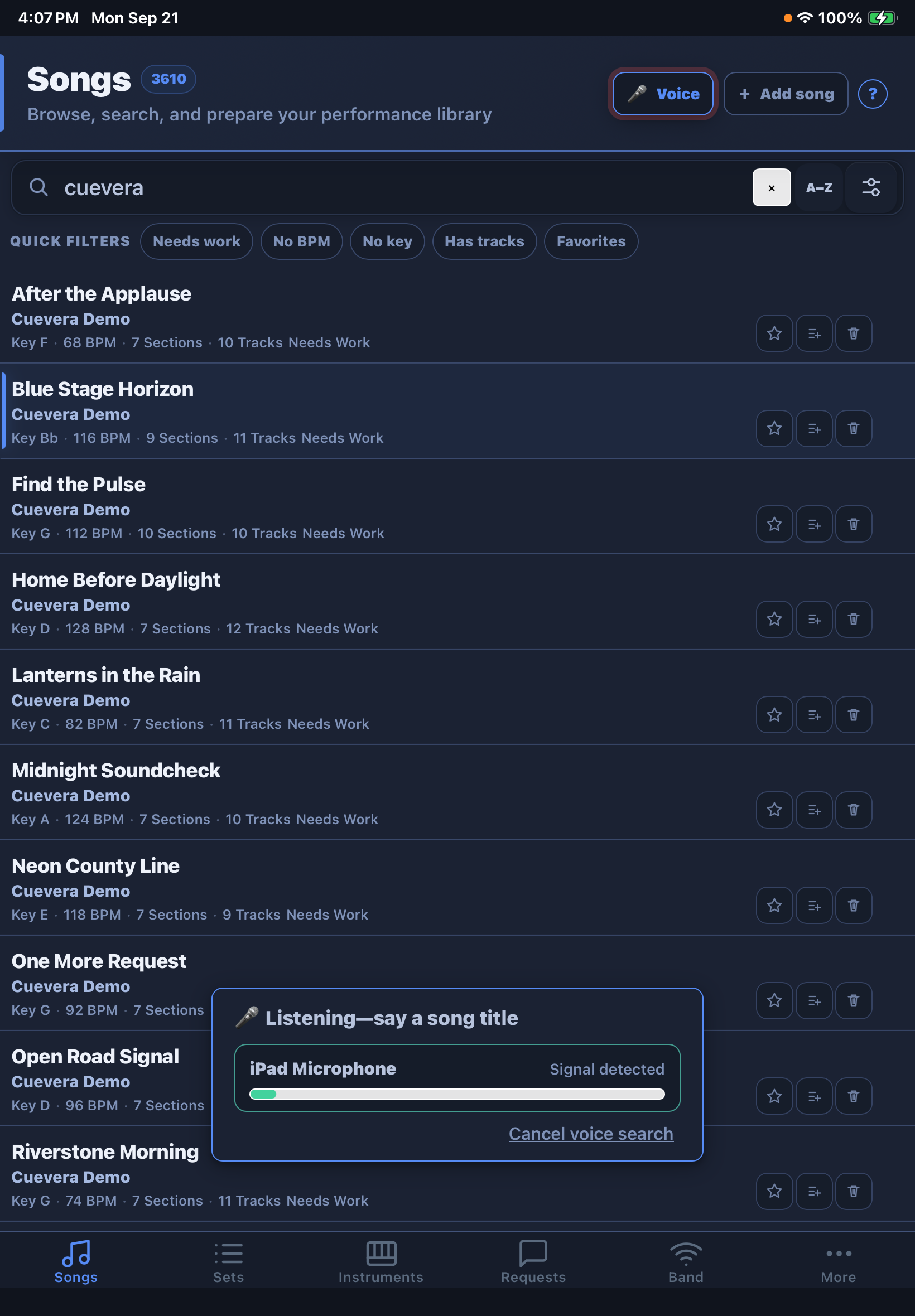
- 🎤 Voice command starts or stops push-to-talk song selection. Say a song title and Cuevera opens the best local-library match; if the result is ambiguous, choose from the suggested songs.
Song timeline & performance cues
Cuevera gives the song one musical clock measured in measures and beats. Sections, lyric and chart cues, beat-level key changes, MIDI commands and segments, lighting scenes, mix changes, guitar/bass/piano parts, drum clips, Text Cues, and Recorded Cues can all point to that same timeline instead of maintaining unrelated timers.
- Prepare or review the song's BPM, time signature, downbeat, and measure grid.
- Open an enabled performance or editing view and use the Song timeline cue lane.
- Select Song Load or a measure/beat, then add or review the cue for that location.
- Rehearse normal playback, seeking, section jumps, and starting in the middle of the song.
Song PDFs and Chart PDFs are kept separate so sheet music and other documents do not clutter the Chart menu. Add automatic PDF page turns at exact measures and beats; disable automatic page cues from the PDF toolbar whenever you want to turn pages manually.
Text Cues show a saved message locally and on authenticated Band Connect followers, optionally limited to selected member IDs. Recorded Cues play a short local audio prompt at the saved measure and beat. Rehearse their timing, recipients, level, and routing.
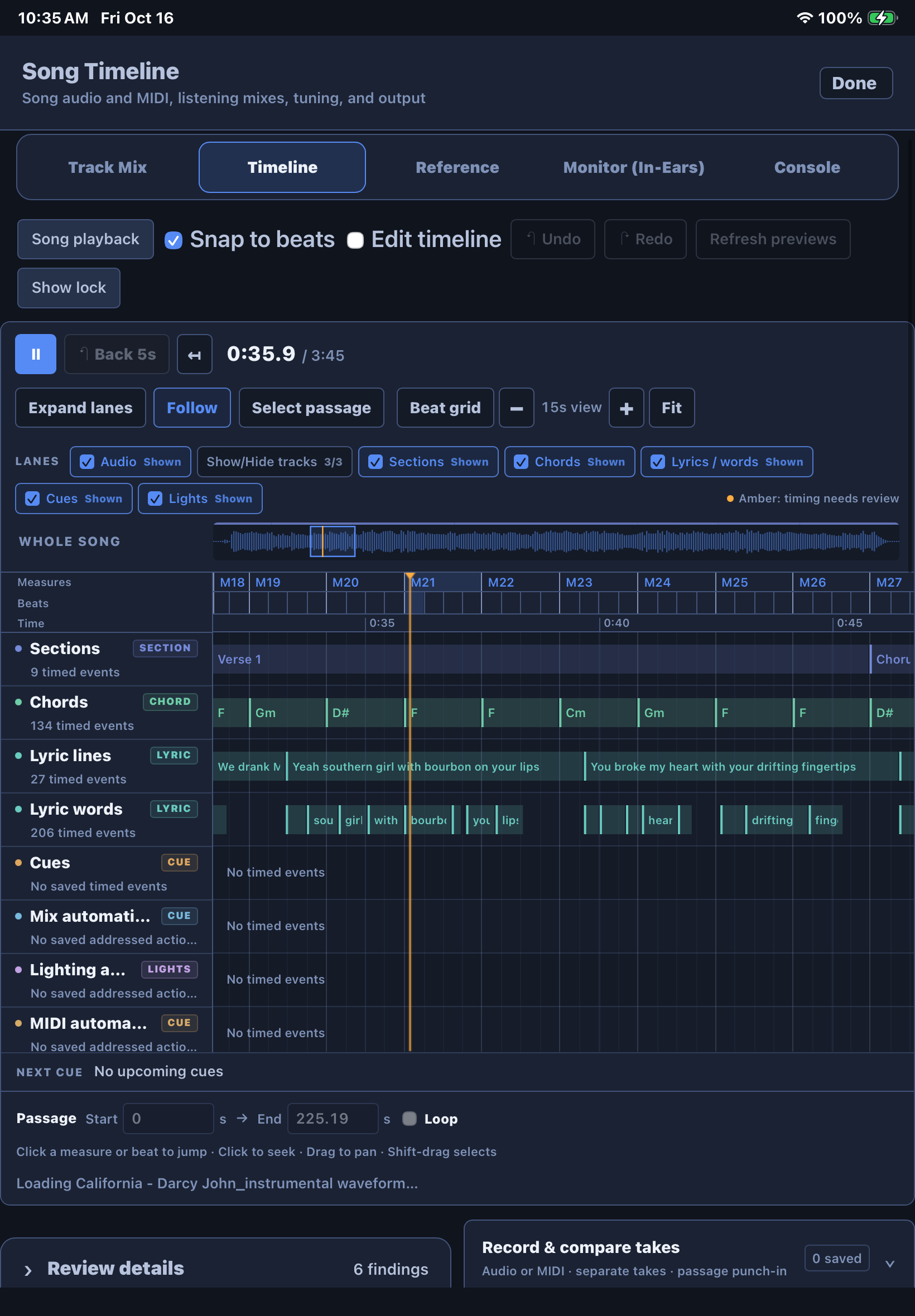
For the saved-song overview, open Track Mix → Timeline → Song playback. The waveform and moving playhead share a time scale with sections, chords, lyric lines, and words. Use Follow to keep playback visible. Enable Edit timeline only when deliberately changing timing, then replay and verify the result.
Drum machine
The Drums view follows the shared song clock and offers three working views:
- Kit — tap the pictured kit pieces to audition sounds.
- Pads — audition the complete General MIDI drum set by name and note.
- Pattern — create, duplicate, rename, delete, or import a MIDI pattern; set steps and accents; preview it at the song tempo; then place it at the selected measure/beat.
Pattern preview is disabled while the song itself is playing. Timeline placements can repeat and can be enabled or disabled without deleting the underlying pattern.
Setlists
The Sets page builds ordered setlists for a gig or rehearsal. Search your library and add songs to a set, drag to reorder them, and Cuevera remembers your last-viewed song or set so you're dropped right back into it next time you open the app — no need to re-navigate before a show.
Each expanded song now uses the same three-line title, artist, and performance-detail layout as the Songs library, while preserving the set's running-order controls.
On touch devices, swipe a set or song row to reveal its delete action; Cuevera asks for confirmation before removal.
Backing Tracks
A song can play back either a single audio file or a full multi-track Track mix, added from either the performance view or the lyrics editor via the ⋯ track menu:
- Single WAV/MP3/M4A/FLAC — one backing track for the whole song.
- Multi-Track ZIP — a ZIP archive containing multiple synchronized audio files (click, music, vocals, etc.), each shown as its own mute/solo channel in the Track mixer.
Cuevera can stream Tracks directly out of a ZIP rather than unpacking them, so you can point the Track library at an external drive or SD card where supported (under More → Tracks) without filling up internal storage. Track Defaults also lets you define name-based mute rules — for example, automatically muting any Track named "Click" and unmuting "Lead Vocal" when the song's Tracks load.
Master volume and limiter settings belong to the song. When a Track package is replaced, Cuevera can retain version history so an earlier arrangement can be identified and restored.
Preserve a saved mix during library scans
Open Settings → Tracks on Windows or More → Tracks on mobile. Scan Track Library preserves existing matched stems’ saved levels, mute, pan, EQ, groups, and output routing unless you enable Reset Mix during Scan. That checkbox deliberately restores defaults for matched stems; recorded takes and unmatched existing tracks are kept. This scan option is separate from Reset Mix inside a song’s mixer.
To force a fresh Karaoke Version download, open Edit → Song Info → Add files → Change Track and choose Remove track. Cuevera clears the active stems and remembered package assignment while preserving lyrics, chords, charts, sections, timing, and cues. It does not delete source files on a USB drive. Choose Get from Karaoke Version to download again.
Existing Cuevera sample songs
Previously downloaded samples remain ordinary local songs and can be found under the Cuevera Samples genre. The current Settings and More menus do not include the former Try Cuevera entry. Use your own imported material with the current preparation guides.
Playback and saved mixes
Saving a mix alone does not select it for startup. Choose a snapshot under Listen with, then Set as Default Playback. Clear Default removes automatic recall. A default snapshot can restore its saved mutes and levels; ordinary fresh-load rules apply without that override.
Playback rewind moves back five seconds. Released channel fader levels, master levels, and subgroup levels save with the song. Audio-stem mute and solo are temporary on a fresh track load; initial mutes follow Track Name Defaults. A still-loaded player can retain its current state. Solo again restores the prior mute combination.
Save Mix stores a named snapshot of levels, pans, channel mutes, EQ, and included MIDI/group settings for explicit recall under Listen with; it does not make the snapshot load automatically next time. Update Mix replaces it. Subgroup mute saves zero level; Master Mute and Dim clear on a fresh load. MIDI-part mutes save separately. Reset Mix writes track defaults and does not reset pitch or speed. Practice/Only presets need separate stems or MIDI parts.
Individual stem import: Song Info → Add files → Add Track offers Choose Individual Stems for synchronized MP3/WAV files. It copies files locally, converts MP3 to WAV, and verifies a ZIP package. Original inputs stay unchanged. Conversion uses additional storage and cannot restore compressed quality or align different starting points. Confirm the import and playback on your target device. See Guide 2 for the workflow.
MIDI cues
Under Instruments, add the MIDI gear you play (keyboards, a vocal harmonizer, etc.) along with its MIDI channel, then save individual patches under each instrument — name, bank/slot, program number. You can trigger any saved patch live with the ▶ button to confirm it's wired correctly before a show.
Actual per-song and per-section MIDI firing is configured on the Songs page (Song Start MIDI) and per-section in the section editor — tying a section to one of your saved patches so it fires automatically as your set moves forward. More → MIDI is for device management and testing raw Program Change messages, not for assigning patches to songs.
Imported MIDI song parts can also follow the shared measure-and-beat timeline. Each part remains independently mutable in the mixer; the Cuevera sample library installs its demonstration MIDI parts muted by default so you can compare them with the synchronized audio stems before enabling them.
Piano Keys and practice
In Piano, switch between Stage and Keys to see chart references or falling MIDI notes approaching the keyboard. Piano, Guitar, and Bass references are works in progress, not transcriptions of the exact recorded parts. Custom song-lick lessons are a future goal.
With a connected MIDI controller, Practice checks target pitches, supports hand selection and a pitch split, 25/50/75/100% speed, mute of the practiced part, file or passage loops, and Wait for correct notes. Blue indicates targets, green played notes, and red try-again feedback. This checks MIDI notes, not microphone audio or rhythm accuracy.
Foot pedal
More → Pedal configures a Bluetooth foot pedal (AirTurn BT-200 2-button, or BT-500/Duo 500 4-button) for hands-free control during a set. Assign each button to Next Section, Previous Section, Jump to Target, Sync WAV to Section, Play/Pause Track, Voice Command, or leave it disabled. A Live Test panel shows which action fires as you press each button, and the page walks through pairing (the pedal needs to be set to "Mode 3" — keyboard arrow keys — for Cuevera to see its input).
Voice control Windows, iOS & Android
Voice control opens a song from your local library without typing. Use the microphone button in Performance View, or assign Voice Command to an AirTurn button under More → Pedal.
- Press once to start listening, then say the song title.
- Press again to stop and process the command. Recording cancels automatically after about ten seconds if you do not press again.
- Cuevera opens a confident match. If several songs are plausible, use Previous/Next to move through the candidates and the Voice Command button to confirm.
When the song opens, its saved lyrics, chords, charts, backing Tracks, routing, instrument parts, and rehearsed cues are available together. This is especially useful for Nashville-style and request-driven performances where the next song may not come from a fixed setlist.
Voice commands require microphone permission. The current Windows, iPhone/iPad, and Android implementations use local recognition models; iPhone/iPad shares its bundled Whisper model with lyric timing. Mac voice commands use Apple Speech, whose availability and on-device processing depend on the device and system. Test the installed build in show conditions before relying on voice.
Band Connect
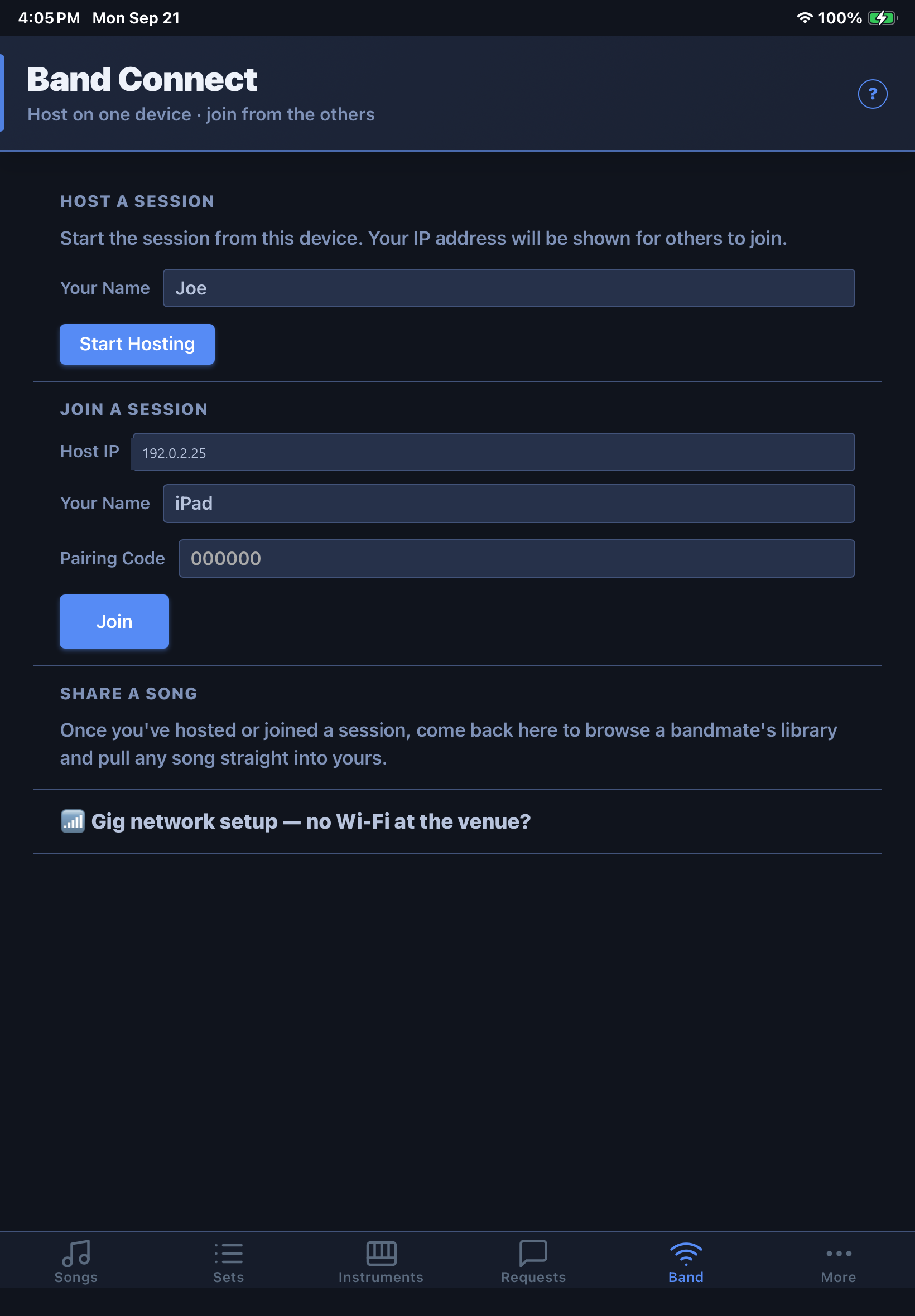
Band Connect syncs your set live with the rest of your band over the same Wi-Fi network — no internet connection, no cloud server involved. One device hosts the session; everyone else joins by entering the host's local IP address and a display name, then follows along with the current song and section in real time.
- Sync My Devices is for devices in the same owner license family. Its PC-master, two-way song-data, and streaming-ID modes are separate from Library Sync’s optional media transfers.
- A band member can exchange selected songs only after the host grants Can exchange selected songs for that connection. The grant resets on disconnect.
- Selected-song replacement shows a comparison when the title already exists; it does not grant permission to overwrite or delete the complete library.
- Follower devices receive live song, section, chart, and targeted Text Cue state but do not receive full-library synchronization.
Song requests
On the device hosting the audience request page, open Settings → Tips & Payments on Windows or More → Tips & Payments on mobile to offer optional public HTTPS payment links. Enable only the providers you use and select a default. Providers handle payments; Cuevera does not collect payment details. Audience members must reload the page to see changes.
The Requests tab keeps a running queue of songs to play next during a gig — search your library and add a pick to the queue, then use Play Next to promote one to "Now Playing."
Importing songs
More → Import is where you bring in existing material:
- OnSong ZIPs — lyrics plus an optional backing track, drag-and-drop or folder import.
- ChordPro files/folders and multi-song files, under "Other formats."
- Ultimate Guitar — search and pull chord charts directly (automated fetch is Windows-only; you can also paste a chart manually on any platform).
- Karaoke-Version.com Tracks — supported workflows on Windows, iPhone/iPad, and Android download owned custom Tracks and import them into the library.
- Instrument patches — Nord Stage 4 HTML exports and VoiceLive CSV exports.
- Library Maintenance — bulk-fill missing Genre (online lookup) or missing Key (detected from each song's audio) across your entire library in one pass.
Title_Artist_Key.zip to
auto-match to the right song on import. Any login credentials for Ultimate Guitar or Karaoke-Version are used
only to connect and are never saved — only the username is remembered.Personal monitor control
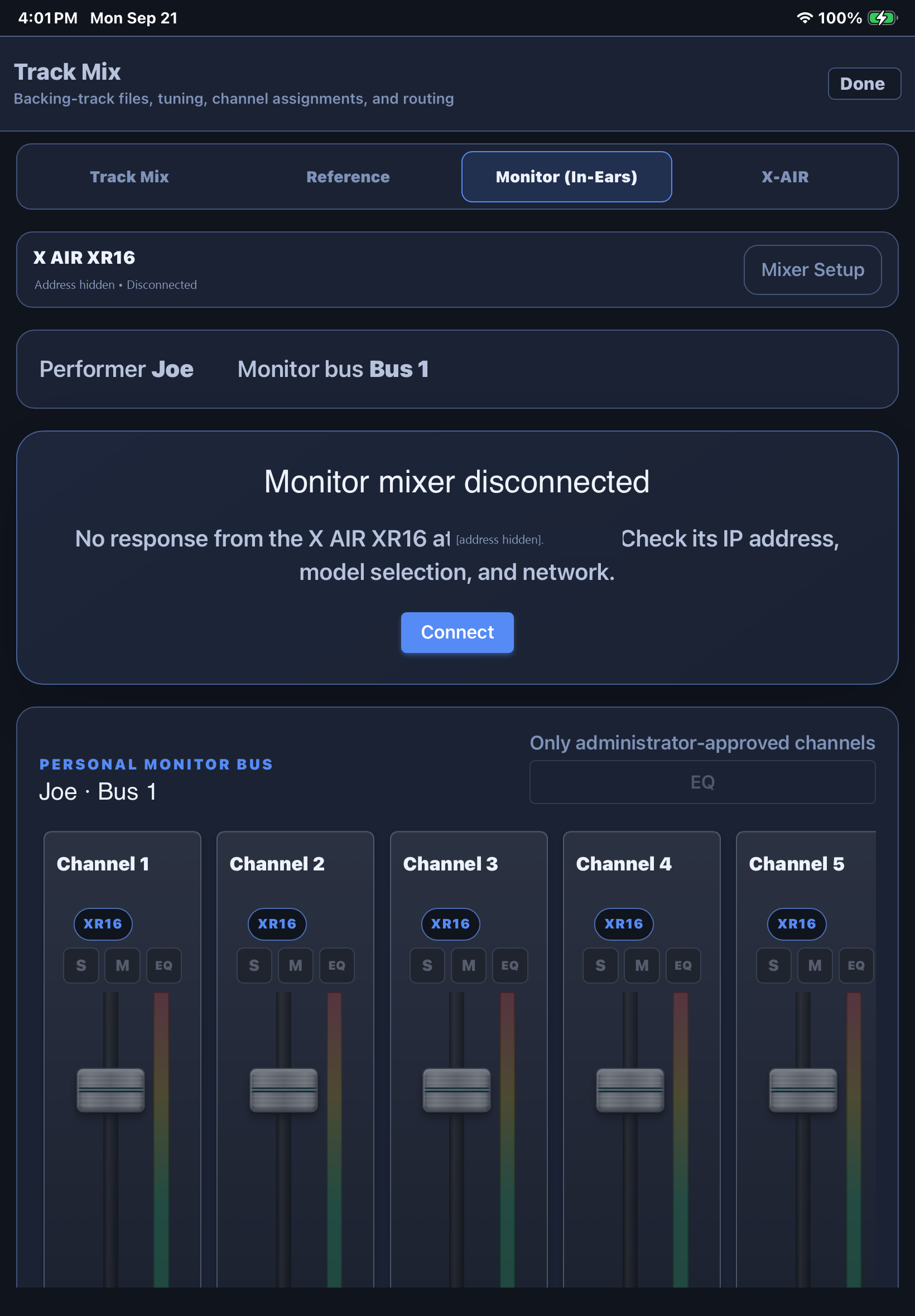
Open Settings → Mixer on Windows or More → Mixer on mobile to discover or select a supported Behringer X AIR XR12/XR16/XR18/X18, Behringer X32-family, MIDAS MR12/MR18, or MIDAS M32-family console. Cuevera remembers an address for each model and presents that model's available inputs, preamps, and monitor buses. Choose the performer, assigned bus, visible channels, and Me channel. Then use Monitor Mode for bounded level changes, Mute, and More Me while watching confirmed, pending, or stale status.
A mixer administrator password protects engineering controls. Its verifier is kept in the device’s protected credential store. An ordinary unlock lasts for the session. Choose Remember FOH access on this device to restore access after restart; Lock clears that remembered access. Losing mixer control must not stop Cuevera Track playback.
Backup & sync
Keep a backup before synchronizing or replacing performance material. Backup creates or restores local backup files; Library Sync compares songs with a paired device. Open these under Settings on Windows or More on mobile.
- Open Library Sync. Pair devices through its device-pairing controls if needed and confirm the intended device identity.
- Choose the paired Device and Connection: Wi-Fi for a local connection or Internet relay for an explicitly paired remote route.
- Choose Song source: all songs or a set. Opening sync for a selected song can offer Selected song only. A set limits which songs are compared; it does not mean the set’s running order is copied.
- Choose Direction. Windows offers One-way: PC is the master; Two-way: compare both devices can exchange changes in both directions.
- Select optional Track ZIPs/backing audio, PDF charts, MIDI files, and cue clips/linked resources. Song details, lyrics, chords, sections, and timing are included.
- For two-way receiving, choose the host on the recipient and use Allow this host to sync. Keep both apps open for relay transfers.
- On the host, choose Compare and sync songs. Resolve any conflict explicitly and verify completion on both devices. Use Stop when you need to end an active session.
Always use the host’s file when there’s a conflict is a deliberate preference. The host is the device starting sync; a first comparison with different files still asks. PC-master mode does not import recipient changes into the PC.
Band Connect’s live following and its separate owner-song/selected-song exchange controls remain distinct from Library Sync’s optional file transfers.
Display settings
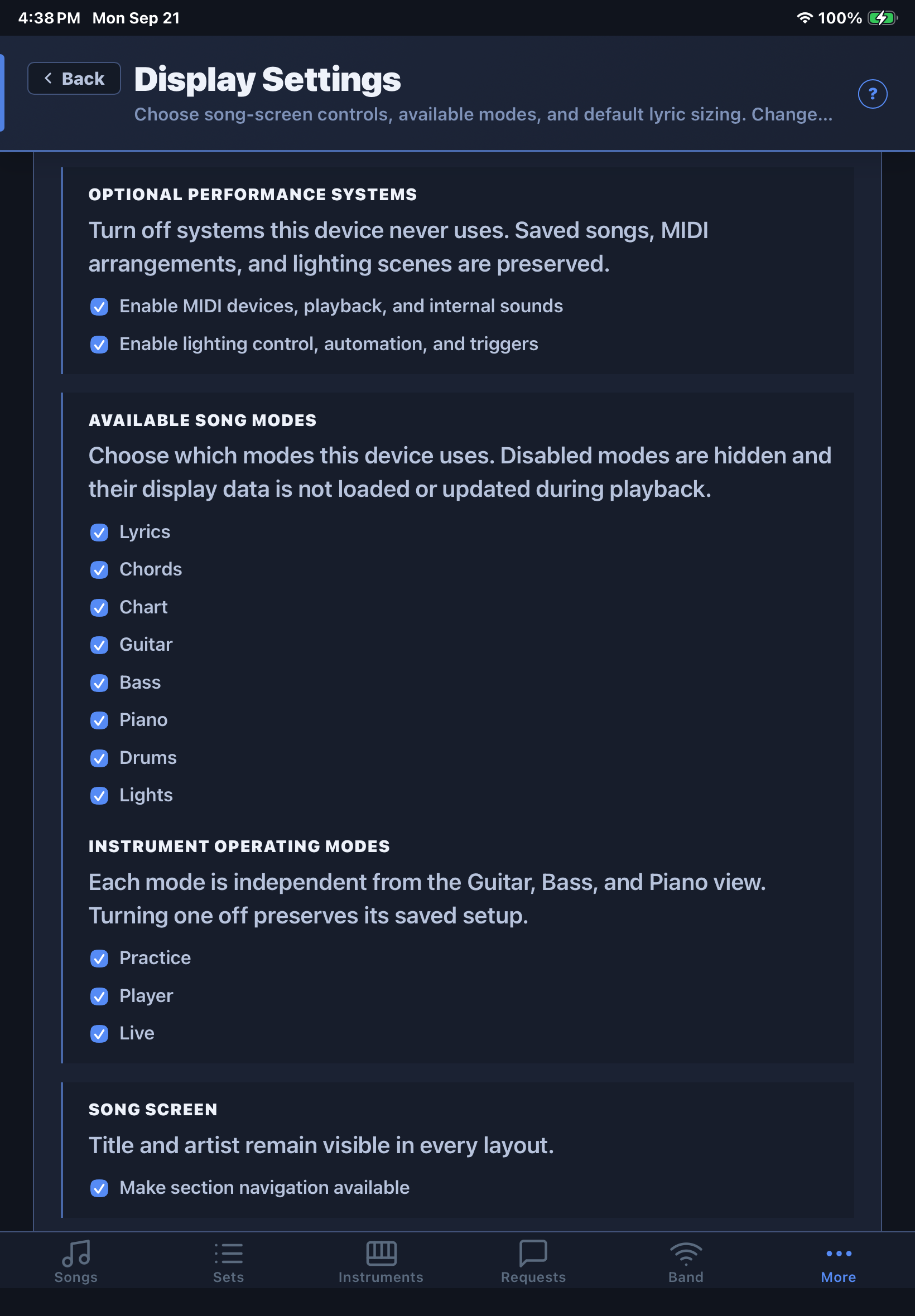
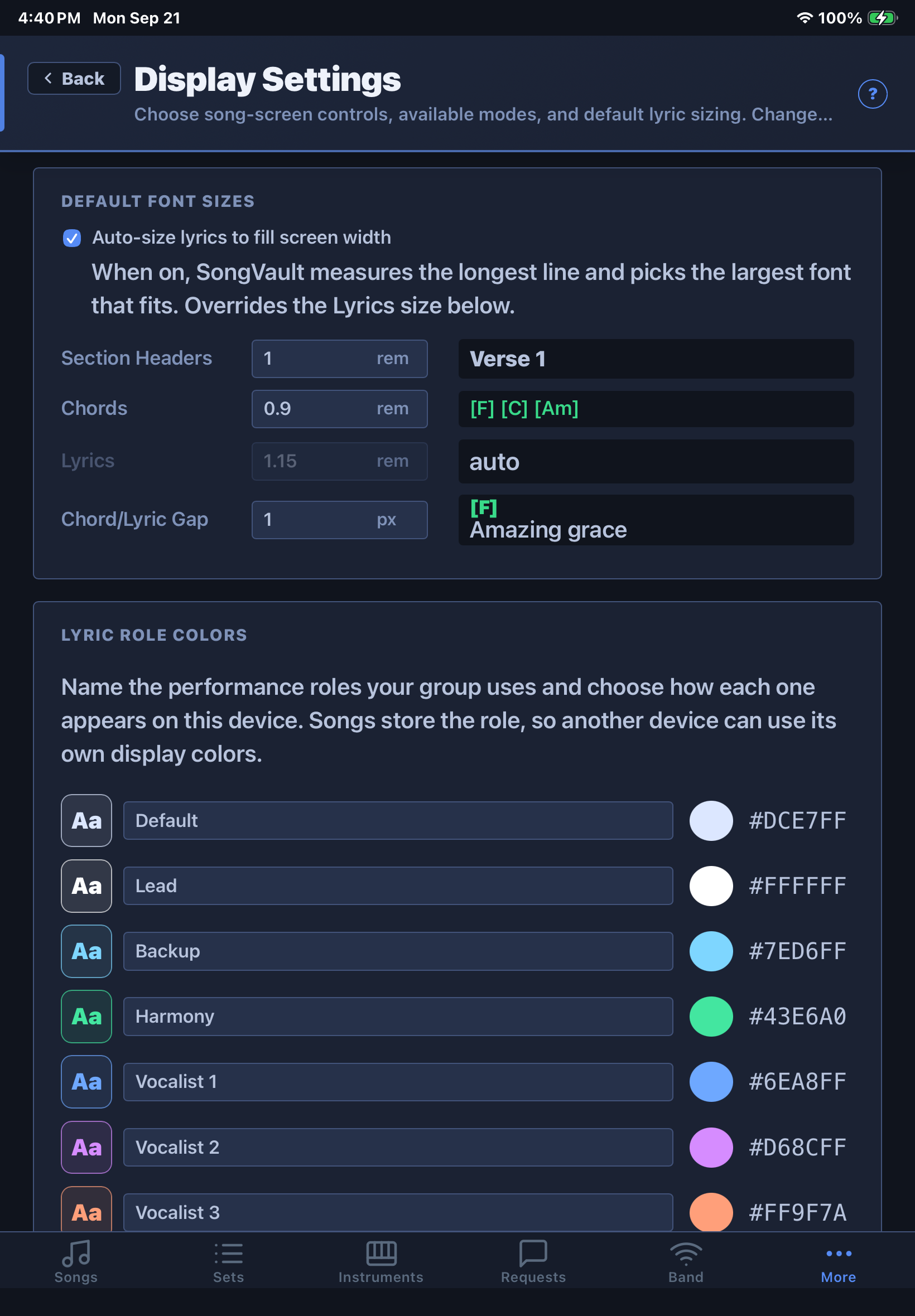
More → Display controls available Song View modes, collapsed-header options, and default sizes — Section Headers, Chords, and Lyrics — plus the vertical gap between a chord and the lyric beneath it, with a live preview as you adjust. An Auto-size lyrics to fill screen width toggle measures each song's longest line and scales lyric text to fit automatically instead of using a fixed size.
License
Try every Cuevera Pro feature free for 60 days—no account or payment method required. Import your library, rehearse with your setup, and use Cuevera at a real performance. After the trial, choose a license; your local library remains on your device.
Settings → License on Windows or More → License on mobile shows your current status — licensed, trial days remaining, or expired — and is where you activate a purchased license key. Activation checks the key locally on your device; Cuevera works fully offline both before and after activation.
- Standard — $39.99 one-time: library editing, setlists, performance flow, pedals, audience requests, and hosting or joining Band Connect.
- Pro — $29.99 one-time for founding users / $59.99 regular: everything in Standard plus MIDI, backing Tracks and multi-Track mixing, library sync, delegated Band Connect control, and advanced external displays.
- Follower — $14.99 one-time: one follower-only device that can join and follow a Band Connect session, but cannot host or edit the library.
Activate from a signed key or QR image
On License, choose the license-key path and paste the signed key, import a license file, or choose Import QR Image. Scan License QR Code appears on devices with a supported scanner. A signed offline QR contains the license and does not require internet. Keep it private. By contrast, Retrieve License uses a private claim code and requires internet for retrieval; the activated license then works offline.
Standard and Pro cover one customer on up to three personal devices. Install Cuevera on each device, copy its Device ID from the License page, and include up to three IDs in the license request. The same page can prepare requests to add or transfer a device later. The first year of updates and support is included; optional renewal is $19.99 per year, and the installed version continues working without renewal.
Bluetooth Follow
Use approved Paired Devices. Windows and Apple can host or follow; Android can follow only. Mobile use is foreground-only. Follow shares performance state, not the library, and does not grant Library Sync receive permission. Test radio capacity and reconnection with the intended devices.
Monitor, Console and Recorder
Personal Monitor Mode controls the assigned bus on supported X AIR/X32 or M AIR/M32 hardware. It is independent of Cuevera Stem Mix. Configure the exact mixer, endpoint, performer, bus and visible channels in Monitor Setup. In the song mixer, use Monitor (In-Ears) for that personal bus, Console for protected FOH controls, and Recorder for USB recording.
Set the 4–64 character mixer administrator password in mixer settings. An ordinary unlock lasts for the session. Remember FOH access on this device is optional and restores access after restart; Lock clears the remembered grant. The password verifier and remembered access are stored in protected device storage.
Stereo USB recording currently supports XR12, XR16 and MR12. Other supported monitor consoles do not gain a stereo recorder merely because Recorder is visible. Connect the supported mixer, mount its USB drive, unlock administrator access, and use Refresh USB. Record reference playback to USB ends a take on pause/end and starts a new take on resume; its enable choice is session-only.
Record a Cuevera set uses each song’s Apple Music Reference. Watch completed takes, skipped references and receipts. Resume continues unresolved entries; Start over asks before recording from song 1 and retains earlier recordings. Verify the reference service, signal route and physical mixer/drive before relying on a take. Losing mixer control must not stop Cuevera playback.
Print preview
Use the printer button on a song or set, review Print preview, then choose Print / Save PDF with the options offered by your device.